How it works
Setup takes about 5 minutes. You need one permission from macOS. We show you every step.
You need a Mac with an Apple chip (M1 or newer) and macOS 14 or newer.
Why an installer package?
With many programs you have to drag an icon into a folder. That means holding something and hitting a precise spot. It is hard with unsteady hands.
With SteadyPoint, clicks on large areas are enough.
The 5 steps
Steps 1 to 3 apply to SteadyPoint Pro, which you download directly. From the Mac App Store, Apple installs the app for you. Then start at step 4.
-
Download the file
Download SteadyPoint from the official page. The file is called SteadyPoint.pkg.
-
Open the installer package
Open the file with a double click. Follow the steps on the screen.
macOS asks for your password. That is normal.
At the end SteadyPoint is in the “Applications” folder.
-
Open it for the first time
macOS asks: “SteadyPoint is an app downloaded from the internet. Are you sure you want to open it?”
Click Open. This happens only once.
-
Allow “Accessibility”
SteadyPoint should steady your input. For that it needs your permission once.
In setup, click Give permission. macOS then asks:
“SteadyPoint would like to control this computer.”
That sounds strict. It is the usual question from macOS. Every mouse utility needs it. Switch SteadyPoint on in the list. Setup notices it by itself.
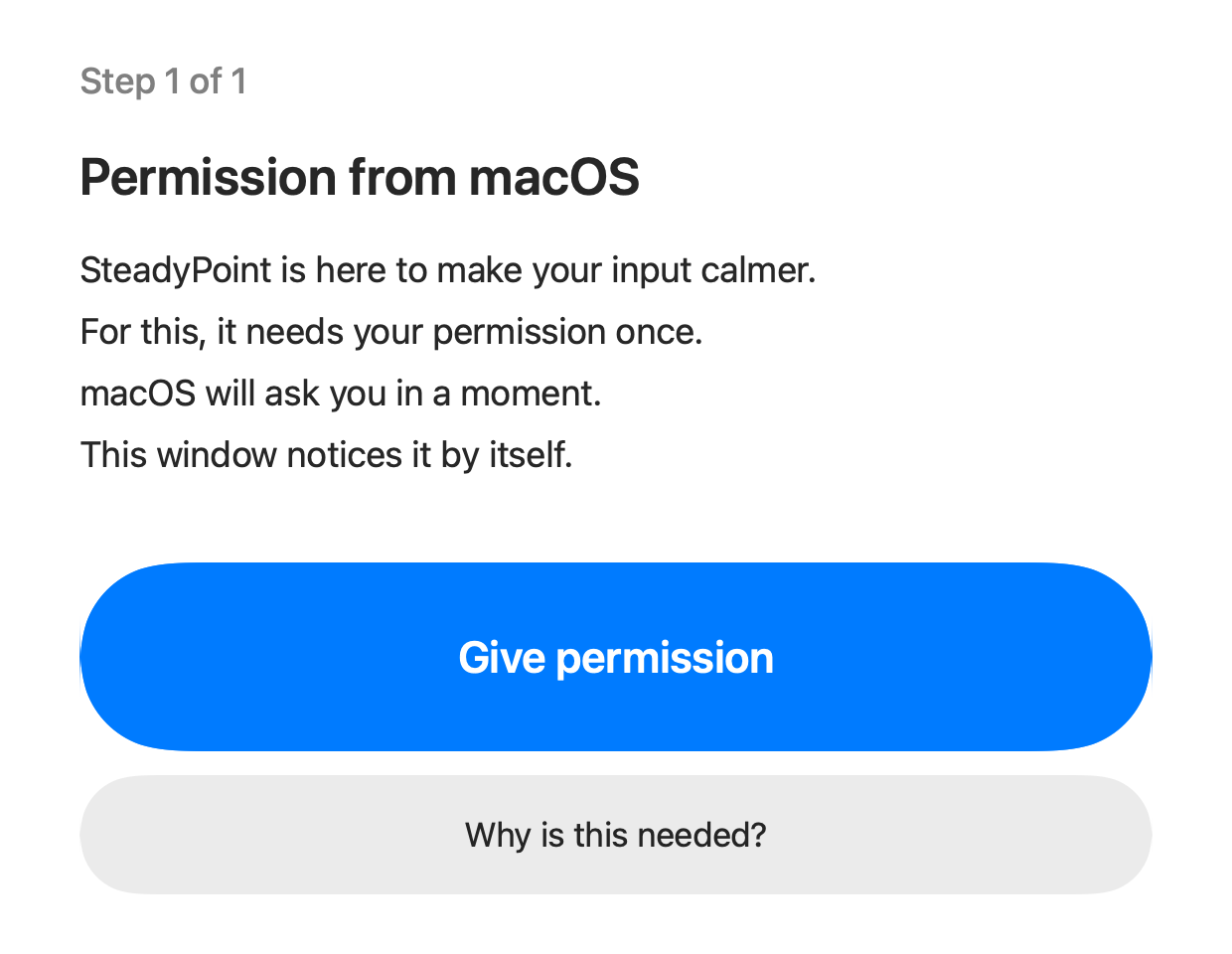
Setup: one large button, no long text. -
Try it out and choose the strength
Move the pointer in the practice field. Click the large circles. Choose the strength that feels right.
Then you try the keyboard. You type a sample sentence.
After that SteadyPoint is ready. You see its icon at the top in the menu bar.
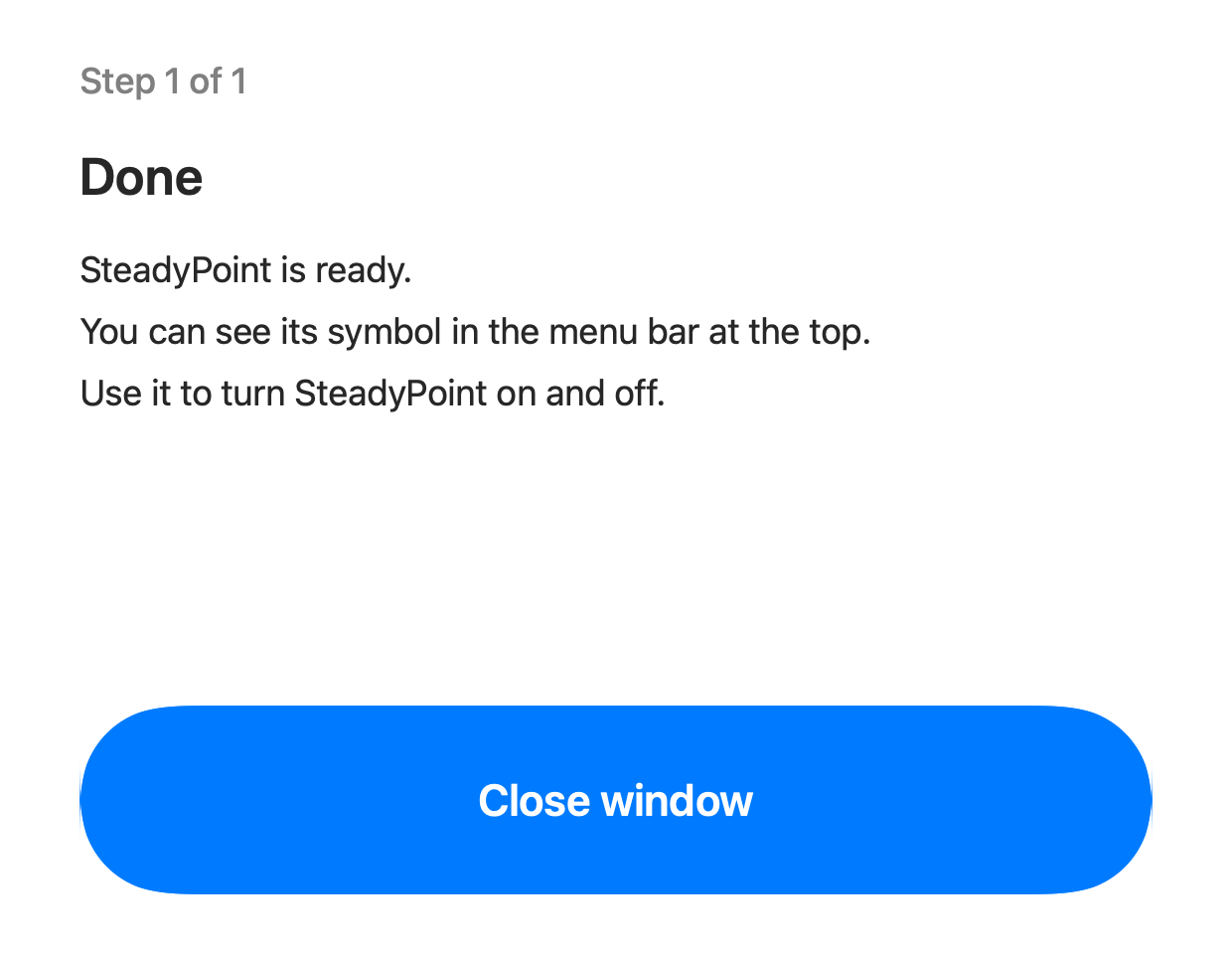
At the end SteadyPoint is ready.
Good to know
- Only one permission is required: “Accessibility”. So SteadyPoint is not in the “Input Monitoring” list. That is correct.
- SteadyPoint asks whether it should start by itself at login. macOS shows a message about it. It says SteadyPoint runs in the background. That is correct and intended.
- SteadyPoint does not store what you type. What you type or do never leaves your Mac.
- You can withdraw the permission at any time in System Settings.
If something does not work
Hold both arrow keys for 5 seconds: everything then works normally again.
More help is on the Help page and in the guide for family.