Features
SteadyPoint makes mouse and keyboard on the Mac steadier. Here is what it can do.
Protection from double clicks
A twitch does not cause a second click.
You choose for each mouse button separately whether the protection applies.
Click anchoring
The click lands where you aimed.
Even if your hand twitches as you press.
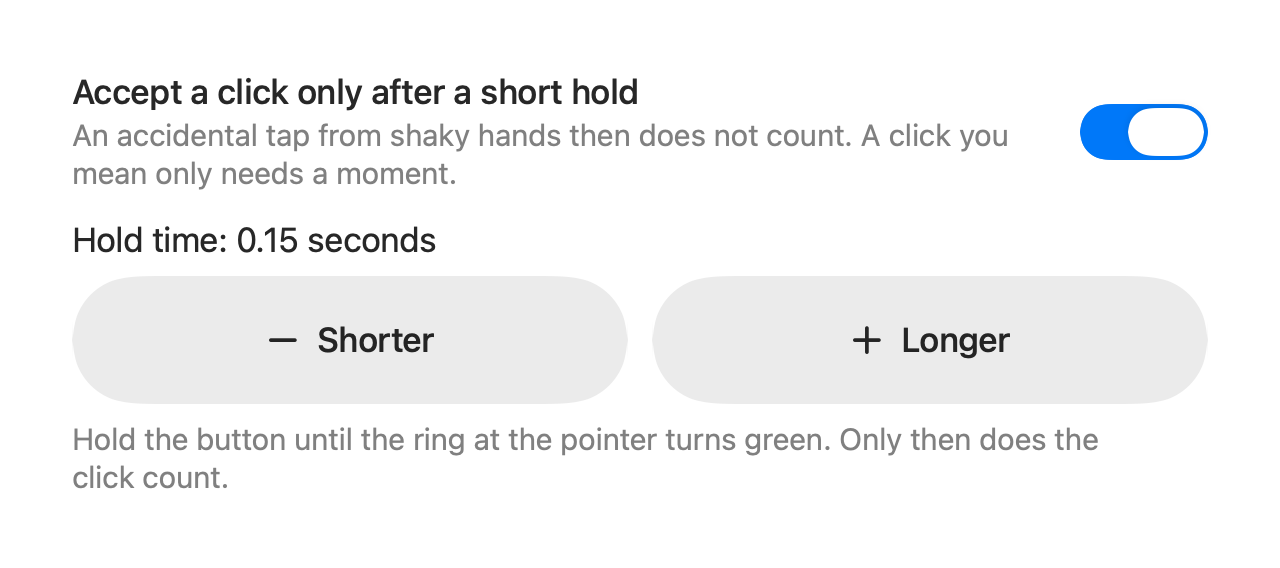
Accept a click only after a short hold
Accidental clicks do not count. A click counts only when you hold for a moment.
A ring at the pointer shows when the click counts.


Protection from double letters
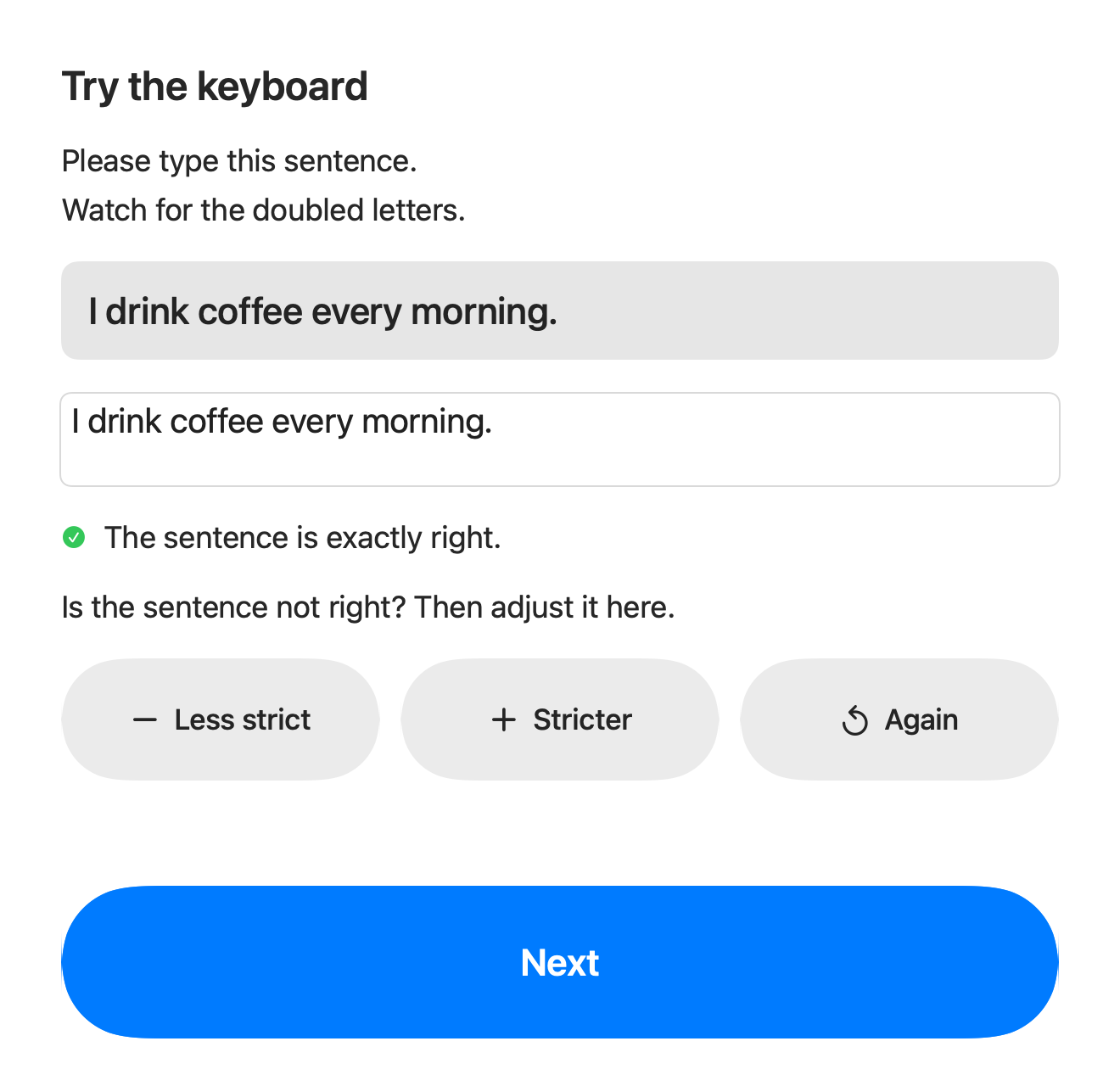
A letter appears only once, even if the key triggers twice.
You can also choose that a key counts only when you hold it briefly. That avoids typing mistakes from brushing a neighbouring key.
Intended double letters stay, for example in “coffee”. In setup you type a sample sentence and set the strictness to fit.
Target assist
Tap the right Option key twice. The pointer jumps to the nearest button.
You no longer have to aim precisely.
This feature is only in SteadyPoint Pro, not in the Mac App Store edition.
Pointer speed and acceleration
You set how fast the pointer moves, and how strongly it accelerates.
A slower pointer is often easier to steer.
Try it out and adjust
An assistant guides you. It uses no technical terms.
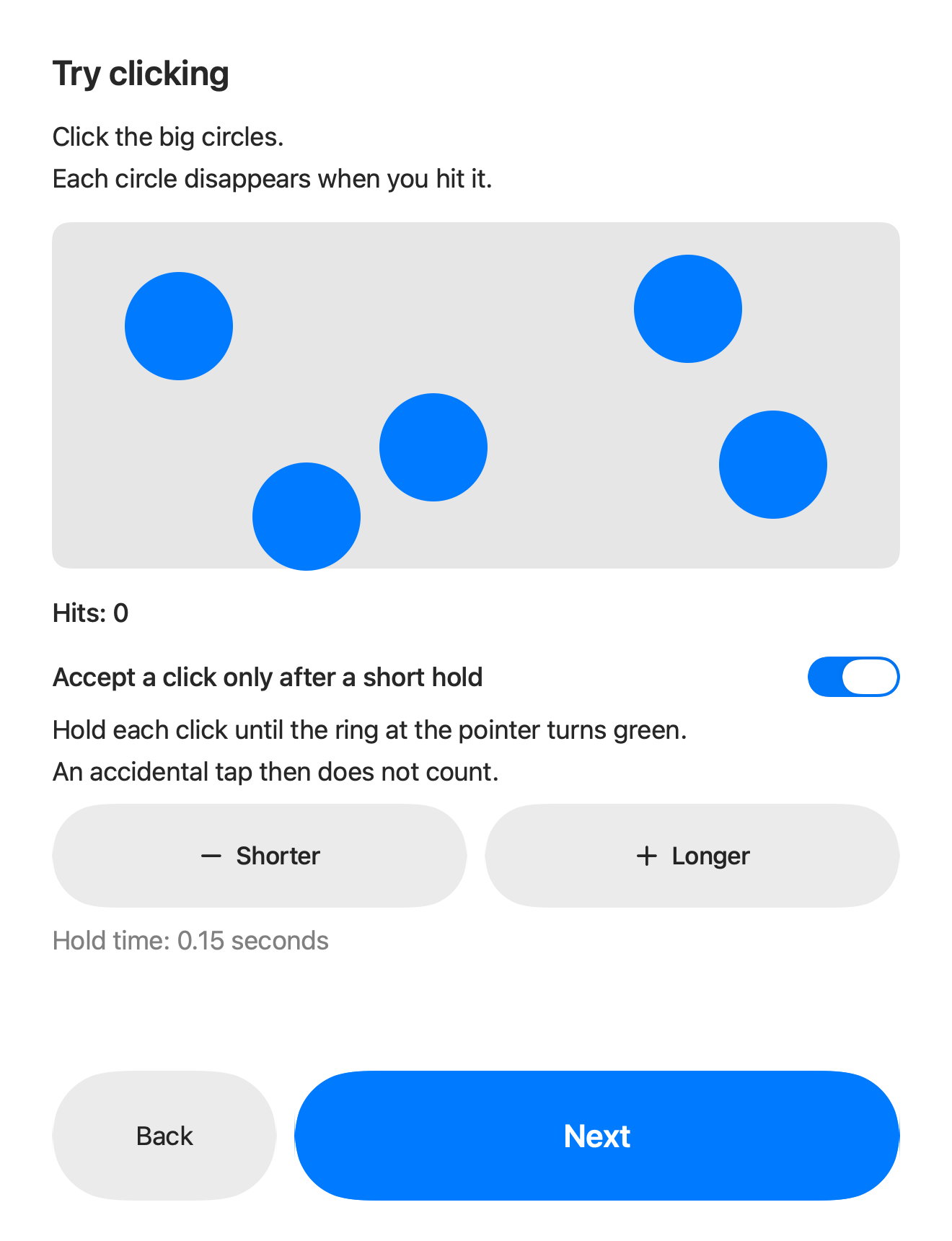
In the practice field you click large circles. You see before and after. You choose the strength: Light, Medium, Strong or Very strong.
You can change the strength at any time.
Emergency stop in three ways
- Hold both arrow keys for 5 seconds.
- Click the red emergency stop button.
- Choose “Turn everything off” in the menu bar menu.
Mouse and keyboard then work normally again right away. The arrow-key way works even without a working mouse.
Turns itself off if something goes wrong
If SteadyPoint has a problem, it turns itself off. Your pointer then works normally.
Clear in the menu
In the menu bar you see whether SteadyPoint is steadying the pointer and the keyboard. You switch each on or off separately.
Share your settings
The settings can be saved as a file. A relative can send it by email and load it on another Mac.
Requirements
- A Mac with an Apple chip (M1 or newer).
- macOS 14 or newer.
- The app is available in German and English.
SteadyPoint is an operating aid and not a medical product.